
Keyboard shortcuts and File Explorer v2
This release makes everyday work faster with customizable keyboard shortcuts and an expanded File Explorer in Background Management. Navigate Level with fewer clicks, preview and edit files, and manage files and folders directly from your browser without starting a Remote Control session.
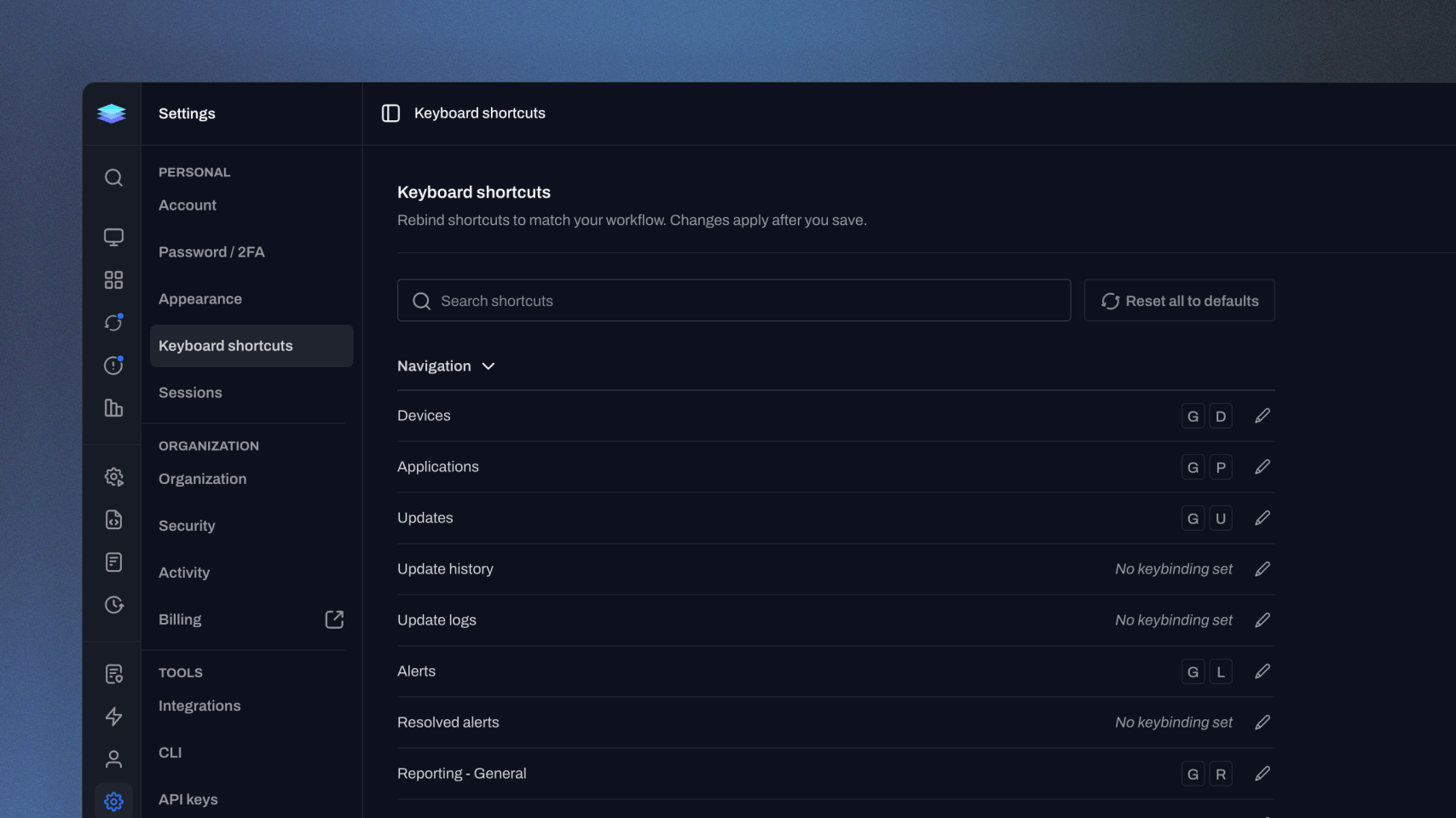
Keyboard Shortcuts
We’ve introduced customizable Keyboard Shortcuts across Level, giving you a faster way to navigate the app and perform common actions without reaching for the mouse. Level includes shortcuts for moving between key areas of the app, along with contextual actions based on where you’re working. Power users can customize those bindings from Settings > Keyboard shortcuts, search the available commands, assign their own key combinations, and reset shortcuts back to their defaults. Whether you’re jumping between pages or triggering actions you use throughout the day, keyboard shortcuts give you more control over how you work in Level and help reduce the clicks that add up across a busy shift.
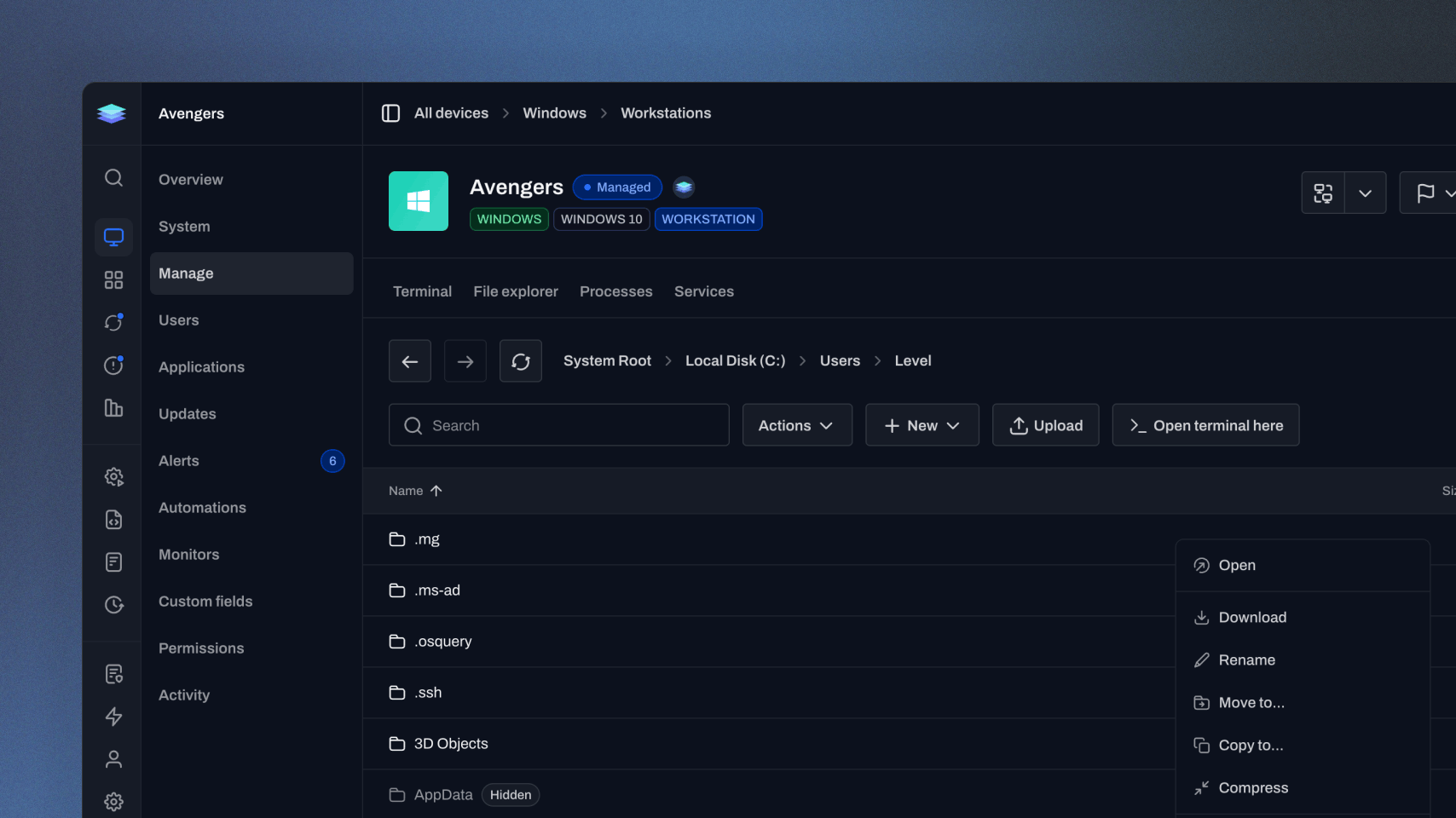
File Explorer Improvements
We’ve significantly expanded the File Explorer in Background Management, bringing more of the familiar file management experience directly into Level. You can now navigate and work with files and folders more naturally, with improved keyboard navigation, multi-select, contextual actions, and a faster, more responsive interface. The updated File Explorer adds more ways to manage files without starting a Remote Control session. Create files and folders, rename, move, copy, delete, compress, extract, upload, and download items directly from the browser. You can also preview supported files, edit text files, search through folders, open a Terminal at the current location, and work with multiple files through bulk actions. The new File Explorer also calculates folder sizes, making it easier to identify what's consuming disk space and quickly track down the causes of drives filling up. Longer file operations are handled through a dedicated Operations experience, giving you clearer feedback as work progresses and a place to handle conflicts when they occur. Together, these improvements make File Explorer a much more capable workspace for handling everyday file management without leaving Level.
Improvements
Automations
- User-scheduled restarts. Set a restart window and let the user choose a time. If they don’t choose one, Level restarts the device at the deadline.
- Automation actions and triggers now have a Replace option for changing a step to a different type. A replacement action stays in the same position, so you don’t need to delete the original and rearrange the automation afterward.
- Automation step panels now organize settings, conditions, and additional options into clearer sections within Configure. The panel remembers your selected tab as you move between steps, so you can review the same details across several steps without reopening the tab each time.
- Adding another automation action or trigger now checks for unfinished edits before moving away from the current form. After you discard edits while navigating between steps, the canvas continues to the selected step and brings it into focus.
- OS-specific automation actions now automatically skip devices they don’t support. For example, a Windows Defender step skips Linux and macOS devices, making it easier to use one automation across a mixed operating-system environment without adding conditions.
- Run Script and Run Automation actions now have a Match by name button in their variable mapping forms. It fills in empty mappings where the variable names match and leaves your existing mappings alone.
Remote Control & Background Management
- Remote Control can now show and control a Linux machine’s text-only console, even when no graphical desktop is running, provided the machine exposes a display Level can capture. Level can also fall back to direct display capture when a desktop environment’s normal capture method is unavailable.
- Linux remote control now supports more GNOME and KDE environments, including older Wayland sessions and GNOME Shell 51. Additional capture methods and fallbacks improve compatibility with systems whose desktop libraries or graphics drivers previously prevented streaming.
Device management
- Supported macOS applications can now be uninstalled directly from Level. This includes apps managed by Level’s Homebrew installation and eligible standalone app bundles; Apple and App Store applications are excluded.
- macOS application inventory now uses the Homebrew cask catalog to identify available versions for eligible applications, including apps that weren’t installed through Level. This gives technicians more version information when reviewing installed software.
- The Linux agent can now be installed in a custom directory, allowing devices that cannot use the standard installation path to store it elsewhere. This also adds support for TrueNAS installations, including keeping the agent configured to start after a reboot.
- Device security scores now account for recognized Linux releases that have reached end of support.
- Device overviews now show a First Seen date indicating when the device first appeared in Level. Technicians can check this directly when reviewing newly added devices or investigating their history.
- When Level confirms that different devices are sharing an agent identity, it can have the affected agent register with a new identity automatically. This helps recover from conflicts caused by cloned installations.
- The Devices table has 19 new optional columns, including serial number, installed memory, BIOS version, full OS version, failed updates, reboot required, and maintenance mode.
Workspace & navigation
- Appearance now includes settings for time format and date order. Choose a 12- or 24-hour clock and month-first, day-first, or year-first dates, and Level applies those choices to timestamps, calendars, and automation schedule forms.
- Searching in a group selection dialog now automatically opens folders containing matching groups. This makes nested groups easier to find without manually expanding each branch of the tree.
Monitoring & alerts
- User monitors now accept * patterns in their known-user lists. For example, admin-* can match accounts following that naming convention, both when looking for unexpected users and when checking that expected users exist.
- Linux service monitors now recognize service aliases, such as sshd for ssh. Policies can use these aliases without needing a different service name for every distribution.
- The Active Alerts tables now have an Auto-resolve column so you can see which alerts are configured to clear automatically without opening the monitor settings.
API, CLI & integrations
- Public API device requests can now optionally include the device’s active disk-encryption recovery keys. You can use this to back up current keys to another system without a technician opening each device in Level.
- Level CLI automation spec files can now reference variables and actions defined within that same file. This allows a complete automation to be created in one command, including steps that depend on newly created variables or earlier actions.
- Changing an action’s type through a CLI spec now keeps its position and preserves step-status conditions that reference it. The CLI also supports Wait for Online actions and the new user-scheduled restart settings.
Patching & software updates
- WinGet automation actions now show the installer’s error details and the stage where an installation, upgrade, or uninstall failed.
- Restart and Install Updates automation actions can now cancel an existing Windows shutdown or restart countdown and request the restart needed by the automation. This prevents a restart scheduled hours or days later from holding up the run. If Windows is already shutting down, Level waits for the device to return and continues the automation.
- Windows, macOS, and Linux Install Updates actions now let you choose whether to skip a reboot if the device was offline earlier in the run. The safeguard stays on by default. Turn it off when an automation deliberately waits for a device to come online and you still want it to restart after patching.
Security & permissions
- Roles now have a Run automations and scripts permission. Admins can give someone access to a device without also letting them manually run automations, saved scripts, or ad hoc shell commands on it.
Bug fixes
Automations
- Automation actions can no longer run twice after a device reconnect or an automatic retry.
- Automation steps now wait for a device to reconnect when it disconnects during dispatch, rather than timing out as though it were online.
- Fixed a rare issue where script output could leave an automation step running indefinitely after the script finished.
- Saving an action or trigger no longer restores an outdated enabled/disabled state from when its form was opened.
- Editing Restart or User Approval actions now preserves their exact saved time limits when changing other settings.
- Script and shell-action forms now prevent a zero-second timeout, which would stop the command immediately.
- New accounts no longer receive duplicate starter automations, and imported monitor policies retain their remediation triggers and group assignments.
- Creating automation actions now returns specific validation errors instead of only “Actionable is invalid.” Shell actions created through the API or CLI also default to System when Run as is omitted.
- A Linux Restart action now recognizes a successful reboot even when the device shuts down too quickly for the agent to finish recording the restart request. The action completes when the device returns instead of eventually timing out.
- One-time automation triggers now save the date you picked in the calendar. Reopening an existing trigger also shows its saved time correctly.
- Level now prevents you from moving an automation step ahead of a step whose result it checks. The API and CLI also reject Restart and User Approval settings where the time limit is shorter than the reminder interval, matching the existing form validation.
- Creating or replacing an automation step through the API now works when it has no conditions. Invalid schedules return a clear validation error, and triggers managed by a monitor policy or another automation can’t be replaced directly.
- Delay and Wait for Approval steps now keep log messages they write before pausing, so those messages are available when you review the run.
- Opening a one-off script run no longer adds its generated automation to Recent Automations.
- Deleting a variable used in a mapping no longer leaves the automation page unable to load. If you edit a saved script from a Run Script action, the mapping form also shows the script’s updated variables when you return.
Patching & software updates
- Canceled Windows Update searches no longer cause a later agent crash, and stalled Windows Update operations can be stopped without leaving the agent waiting indefinitely.
- Install without restarting now honors that choice when installing all updates on a device.
- macOS update progress now shows the correct package name and no longer reports download-only updates as installed.
- Linux update actions now handle package-manager failures, progress, and reboot requirements more reliably on Oracle Linux and other Yum/DNF systems.
- Late responses from an earlier update action no longer close a newer dialog or clear its selection. Confirmation dialogs also prevent repeated submissions while closing.
- Install and restart buttons on the By Device updates page now follow the device’s current online/offline state.
Monitoring & alerts
- Linux service monitors no longer overload systemd when many services are monitored, and exited services no longer alternate unpredictably between running and stopped.
- Event Log monitors no longer raise unnecessary service-failure alerts when the Level agent restarts itself during normal operation. Windows can record these routine restarts as service-termination errors, so Level now filters those events for its own agent service.
- Reachability tooltips now distinguish time slots with no ping data.
- Offline alerts now measure how long a device has been offline since its most recent disconnect. A laptop that reconnects and later goes offline again no longer inherits time from the earlier outage and alerts ahead of the configured threshold.
Remote Control & Background Management
- Linux remote control now preserves Shift and Alt combinations correctly and fixes slow or reversed scrolling on KDE and wlroots desktops.
- Windows remote control mouse input now recovers when a monitor is disconnected or reconnected during a session.
- Remote and terminal sessions no longer produce duplicate Activity entries or inflated session durations.
- Remote clipboard copying now reports success only after text reaches the local clipboard, and shows an error when browser permissions prevent copying.
- The remote-control services restart confirmation now closes correctly when canceled or dismissed with Escape.
- Background management no longer shows duplicate service entries.
Device management
- Windows Cloud PCs now report the most recent signed-in user more accurately after browser sign-ins and session reconnects.
- Agent startup no longer reports the device online before it is ready to receive commands, preventing commands from being dropped during startup.
- Fixed a Windows recovery case where the agent service could remain running after losing its internal monitoring connection.
- Security information collection now allows enough time for administrator queries on domain controllers, preventing subsequent checks from timing out.
- A slow initial application inventory scan no longer blocks the rest of agent startup.
- Deleting the device currently being viewed now returns to the device list after a successful deletion.
- Device notes now preserve line breaks.
- Devices no longer incorrectly disappear from a Flagged or Maintenance Mode filtered list when their information updates live.
Workspace & navigation
- Live updates now recover after reconnects and authentication-token changes, keeping tables and group counts current without a page reload.
- Live changes to devices, automations, and repository files now appear correctly in parent-group views when the records belong to nested groups. Newly created groups also appear without refreshing.
- Reopening device and script pages now fetches current details. Selecting a saved script to run also picks up its latest variable definitions.
- CSV exports no longer stop unexpectedly when live data changes during the export.
- After a bulk action, only completed rows are deselected. Failed or canceled actions keep the selection available for retry, and affected rows wait for refreshed results before accepting another action.
- File Repository upload conflicts now join the existing conflict dialog, including conflicts discovered while an upload batch is already being handled.
- Creating a tag from a selector now selects it immediately while keeping the existing selection.
- Autocomplete menus now stay beside the cursor when editing a wrapped line.
- Failed saves and deletions now show errors and leave controls usable for retry across settings, security, monitors, integrations, tags, and webhooks.
- Saving preferences for the first time no longer fails when multiple preference changes arrive together.
- Screen readers now receive clearer names for slide-out panels, table controls, device-management tabs, and security settings.
- You can now clear a team member’s job title or an automation variable’s description and have it stay cleared after saving. Changing a Windows KB exclusion’s expiration to Never also removes its previous expiration date.
- The browser’s Back button now respects unsaved-change warnings. The File Repository also warns before you leave with a transfer in progress, even if you’ve already closed the upload panel.
Security & permissions
- IP restrictions now prevent deleting or disabling the last enabled rule covering the current user’s IP address. Failed rule changes also restore the saved state.
- Sign-in, SSO, and password-reset requests no longer wait indefinitely on stalled API requests. Authentication routes also reject cross-site submissions.
- Level now applies stricter permission checks to device actions, custom fields, monitor policies, webhooks, remote sessions, and SSO configuration.
API, CLI & integrations
- Testing a new integration configuration now reports the actual connection or credential error instead of a generic server error.
- A missing or invalid Zest company response no longer prevents other valid company mappings from loading.
- Retrying a webhook no longer reports an error after successful delivery when the destination returns response text without a character encoding.
- Public API device responses now omit optional sections when their include_* flag is explicitly false.
- The v2 groups API now accepts parent_id=null for root groups, and its OpenAPI document correctly describes nullable responses for client generators.
- Automation-run API responses now handle numeric and true/false log values without failing.
- Editing a webhook now keeps its existing signing secret when you leave the Secret field blank. If the save fails, the editor stays open with your changes so you can retry.
- Level CLI no longer reports a script or shell command as changed when the only difference is a trailing line break.
Feedback delivered in this release
Follow the requests that helped shape this update.
- File Explorer 2.038
- Device Column - Serial number and MAC24
- Device Column - Disk's % Free7
- Device Column - OS/Version7
- Drag-and-Drop File Transfer in Remote Control6
- Device Column - User display name, upn, and email4
- Device Column - Chassis Type / Form Factor3
- API for Encryption Keys2
- Wildcard support in User Monitor1
- Add support for TrueNAS0